Subscriptions
Utilize subscriptions to receive mobile notifications from your robot and sensor devices, such as cleaning start, cleaning completion, and alerts. You have the ability to add phone numbers and to view or update existing subscriptions at any time. Upon registering a subscription in SBX Connect, please follow the instructions provided in the message sent to the phone number to opt in.
┗ Add New Sensor Subscriptions
┗ Sensor-Triggered Task Generation
To see the created Task, go to see the following page. → Checklist App
Robot Subscriptions
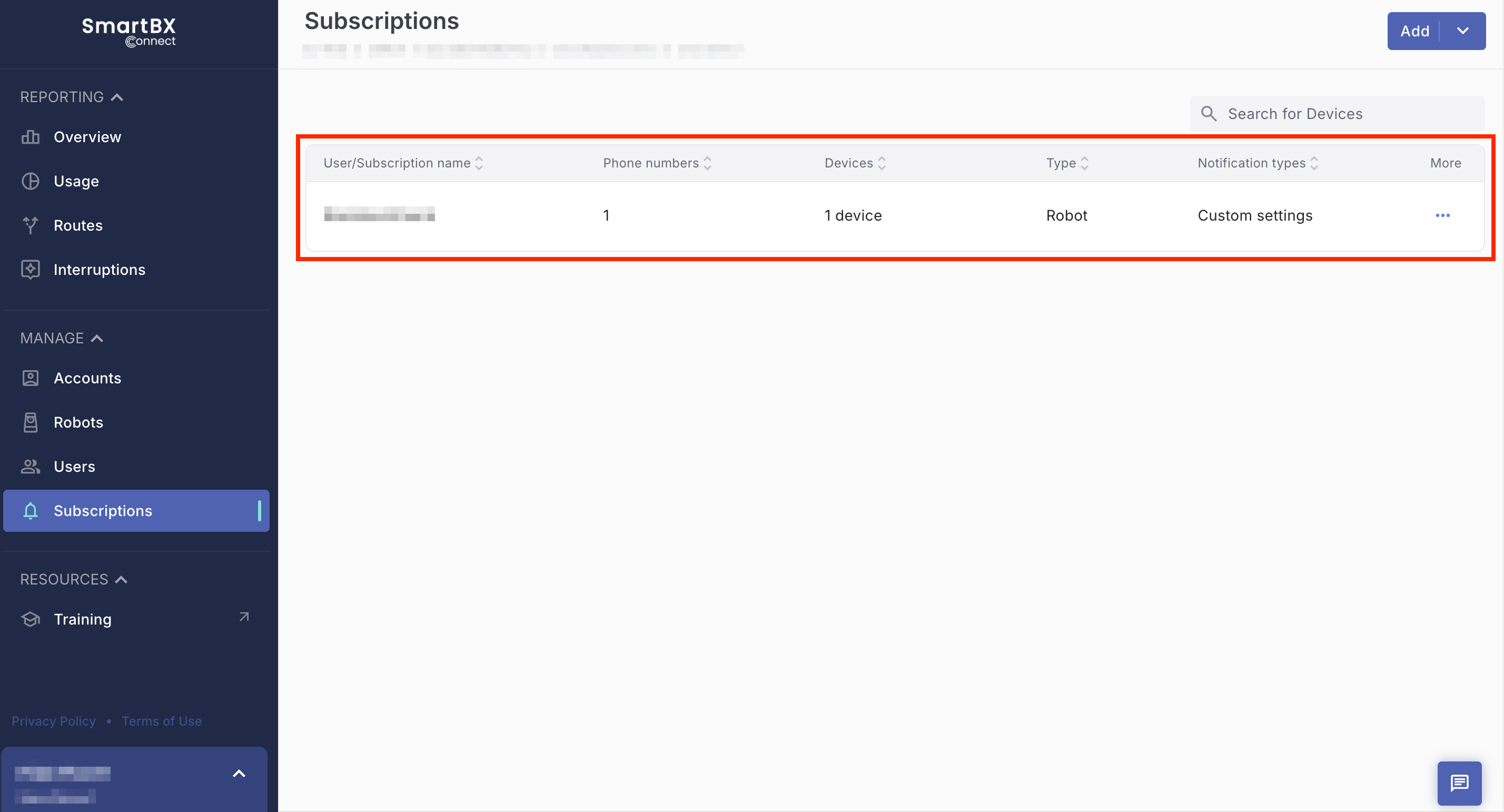
To view the list of added subscriptions, navigate to the Subscriptions section in the MANAGE menu, where you will find the existing list of subscriptions.
Add New Subscriptions
💡 Users can now configure subscriptions from non-leaf accounts.
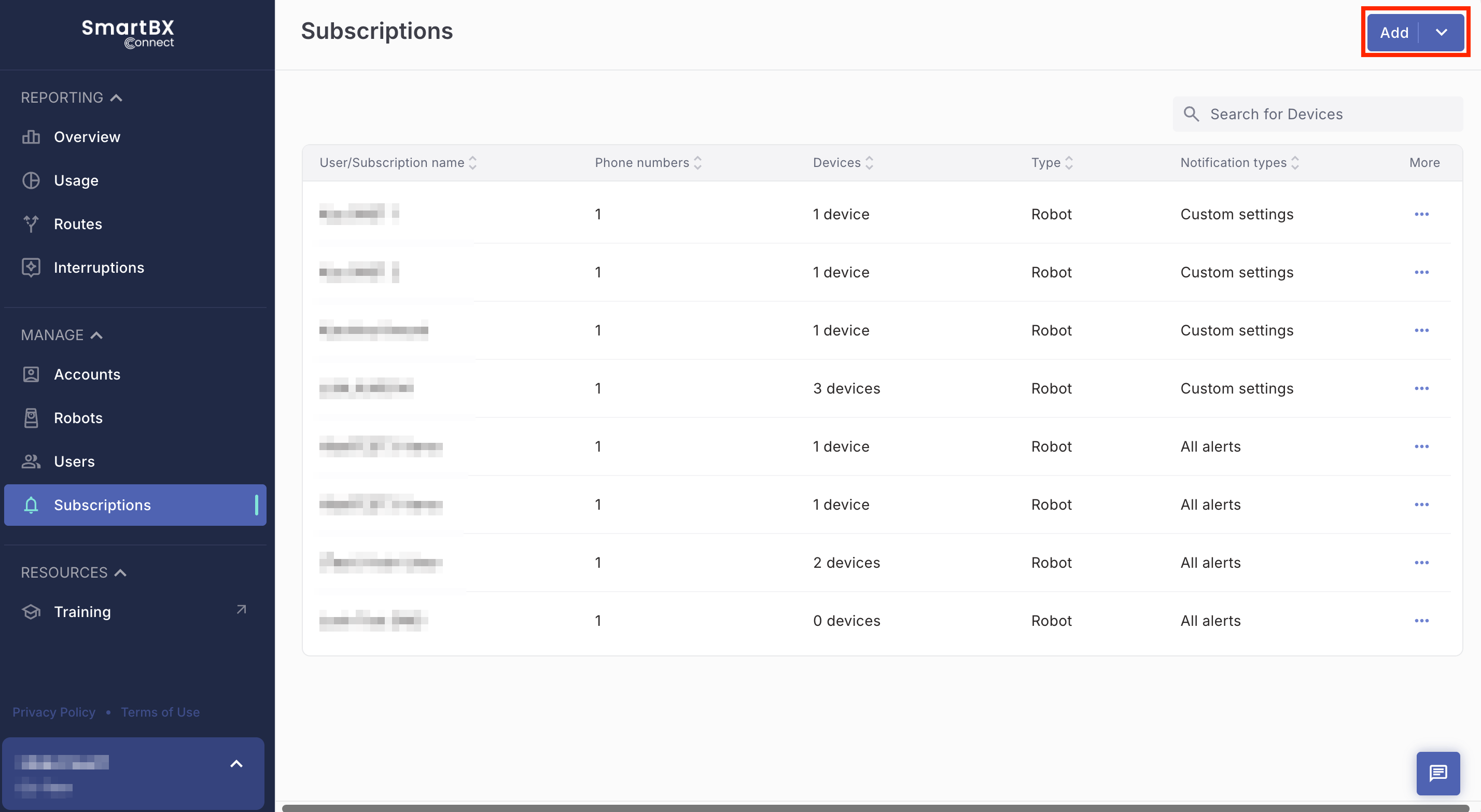
- To add a new recipient, go to Subscriptions on MANAGE menu, then click "Add".
-
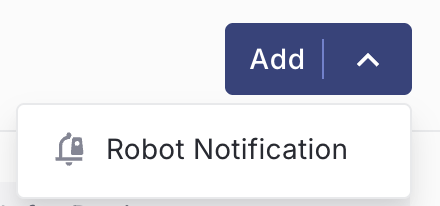
Click "Robot Notification".
- Choose one of the following options:
-
Existing User: Set up a Subscription for a registered user.
Select Existing User, then select a target user from the drop down menu. If the user has not specified a phone number, you can add it on this screen.
- New Recipient: Establish a subscription by inputting a phone number without registering a user. Follow the on-screen instructions to enter the phone number and, if desired, an optional subscription name. This action does not prompt the user to join SBX Connect.

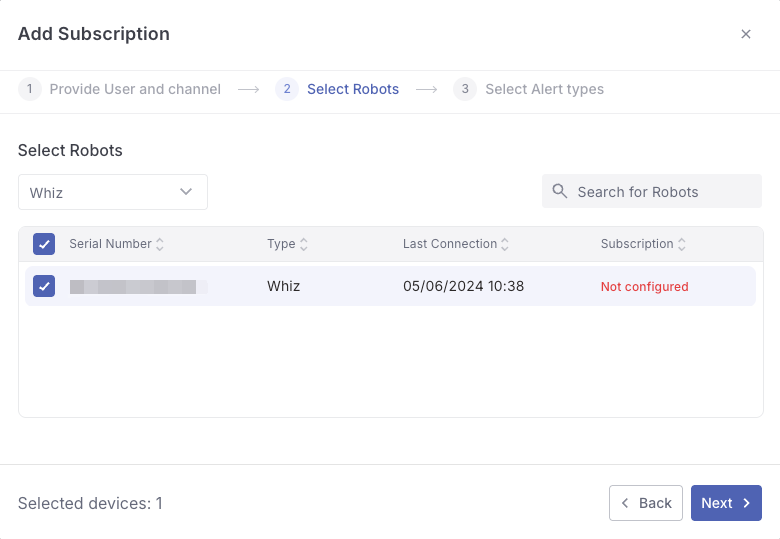
- Select the devices to include in the Subscription. Click Next.
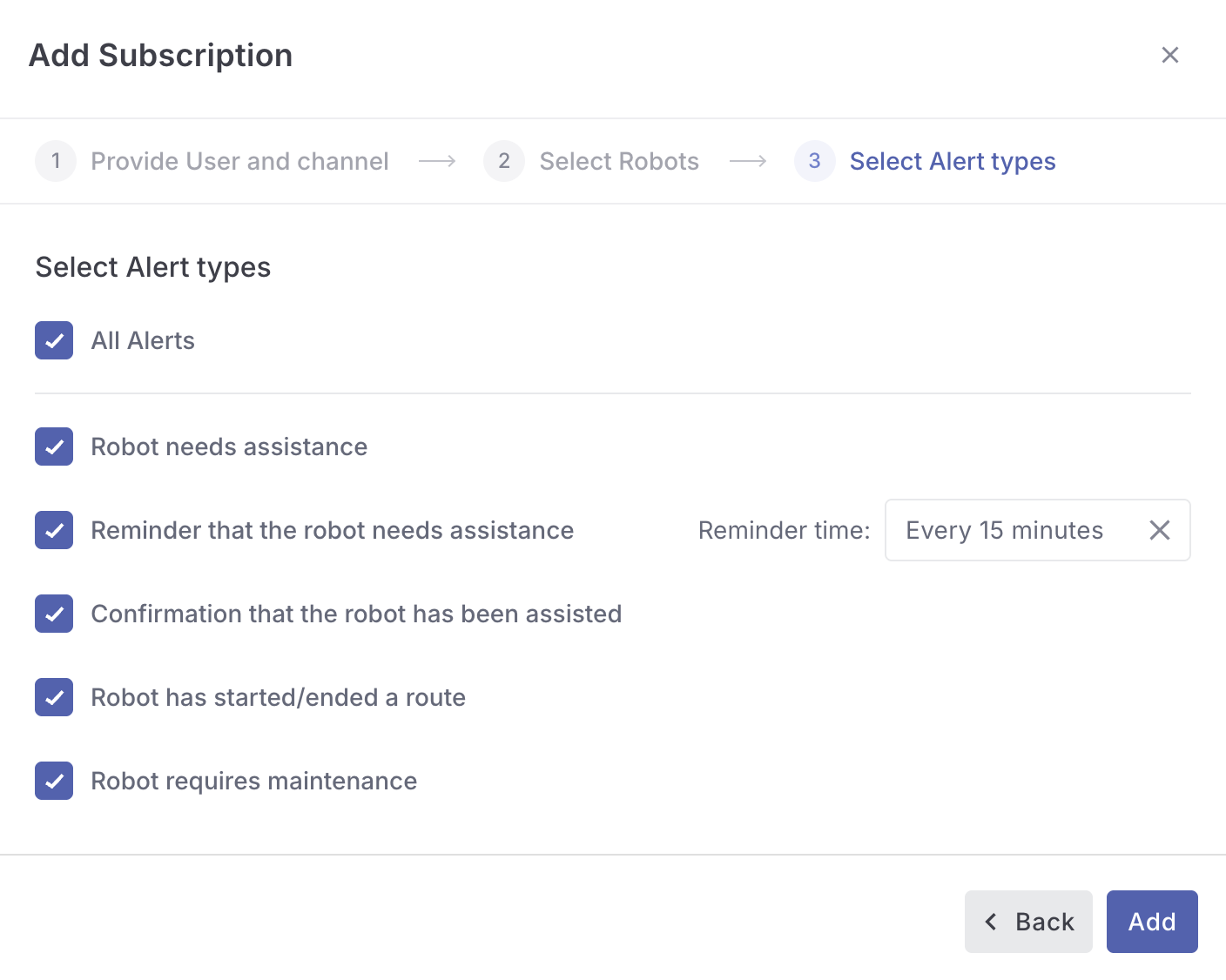
- Select Alert types, then click Add.
- Complete opt-in completion by following the instructions provided in the message sent to the designated phone number.
In a few countries, SMS might not work because of some limitations from the mobile carriers. Try using WhatsApp instead.
Edit Subscriptions
- To edit existing subscriptions, go to Subscriptions in the MANAGE section.
- Click the three-dot menu to the right of the subscription you want to edit, then select Edit Subscription.

- Revise the information in the window as necessary, then choose Save. Utilize the tabs at the top of the window to navigate between editing User and Channel, Robots, and Alert types.

Delete Subscriptions
- To delete existing subscriptions, go to Subscriptions in the MANAGE section.
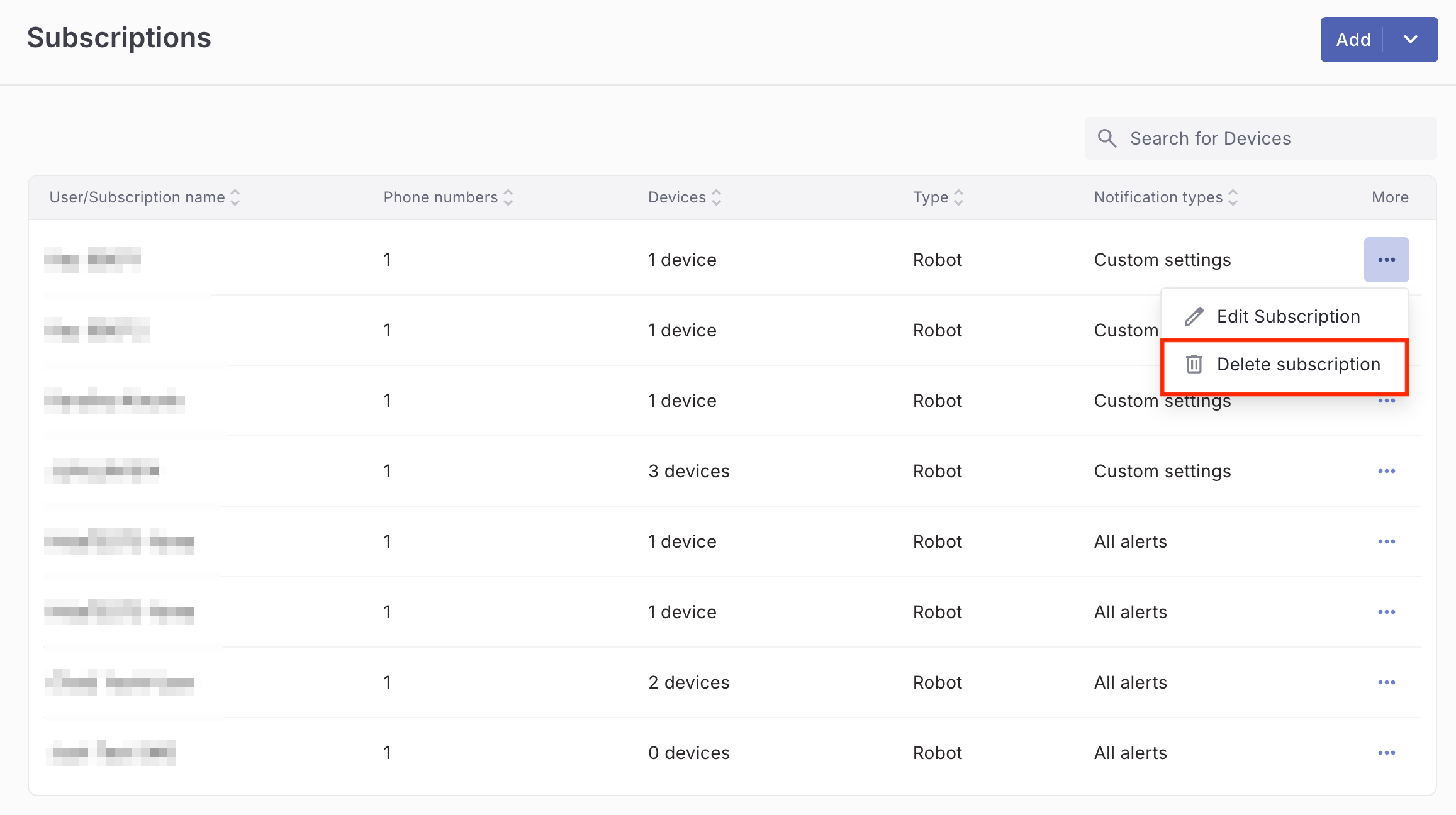
- Click the three-dot menu to the right of the subscription you want to edit, then select Delete subscription.
- Review the warning message, then select Delete.
Sensor Subscriptions (APAC)
APAC users also have the option to add a Sensor subscription using a phone number and Email-address.
Add New Sensor Subscriptions
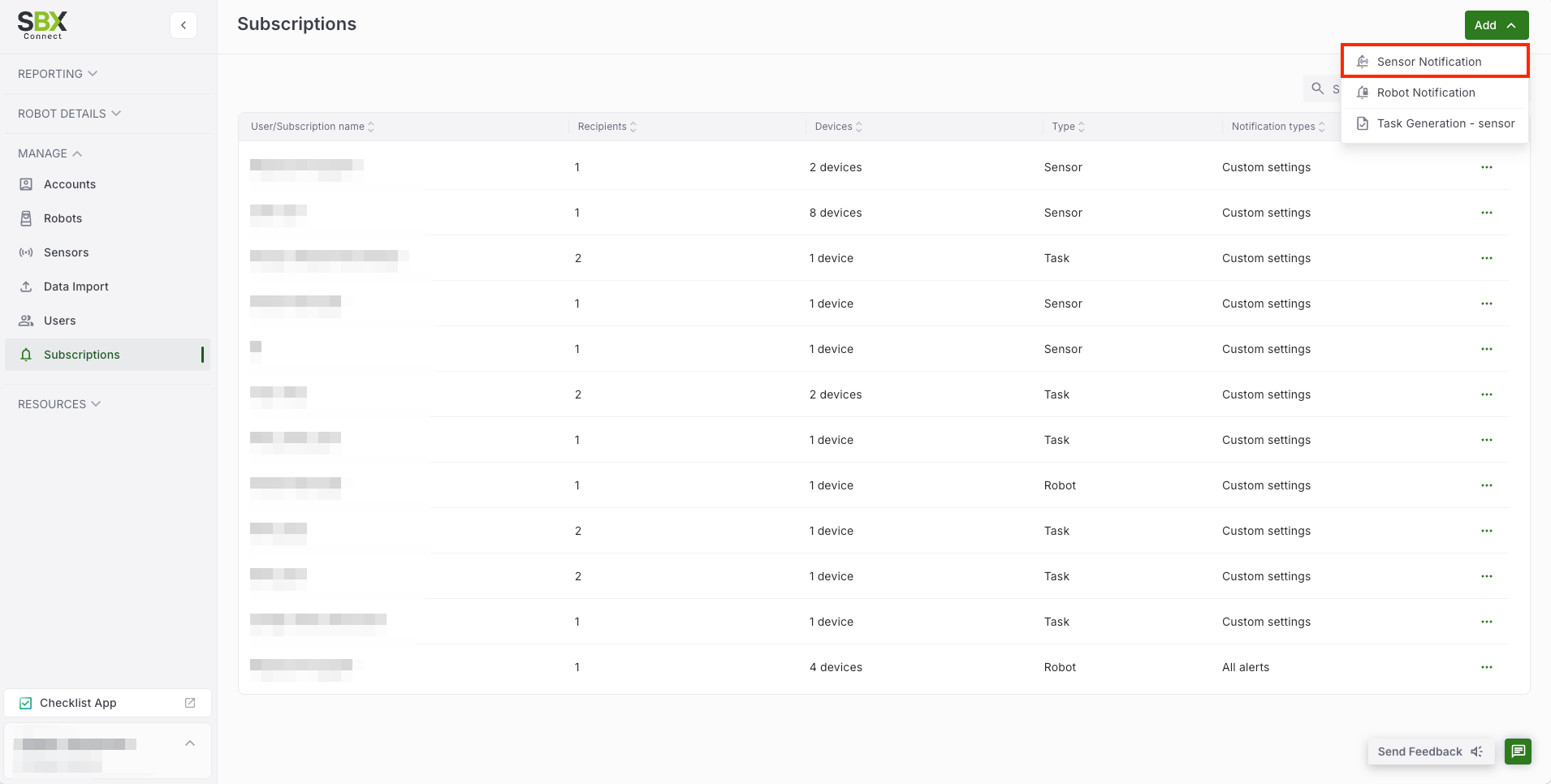
- Click Add, then select Sensor Notification.
-
Select registered users from the drop down menu. You can also establish a subscription by inputting a phone number or E-mail address without registering a user. Follow the on-screen instructions to enter the phone number or E-mail address and choose Notification channel. If desired, an optional subscription name. This action does not prompt the user to join SBX Connect. Click "Next".
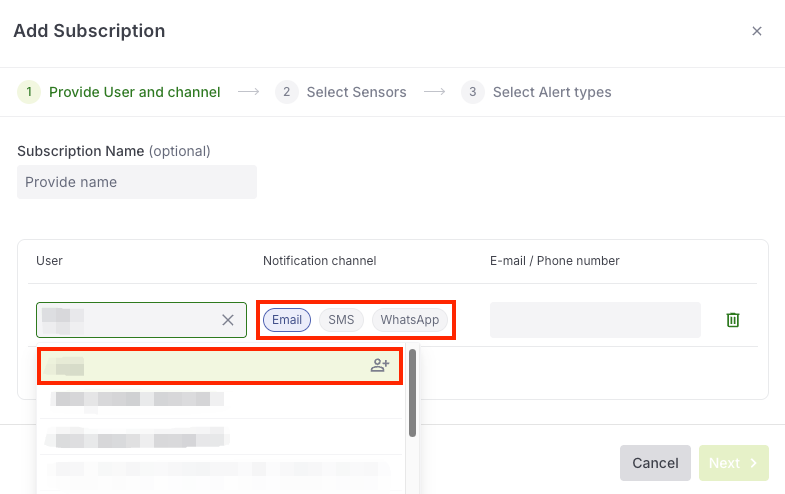
A new User name you input is shown in a green field and other registered Users are shown in white fields.
Once you input one User, then a new field to add another User as recipients appears in a subscription for sensor devices, if necessary.
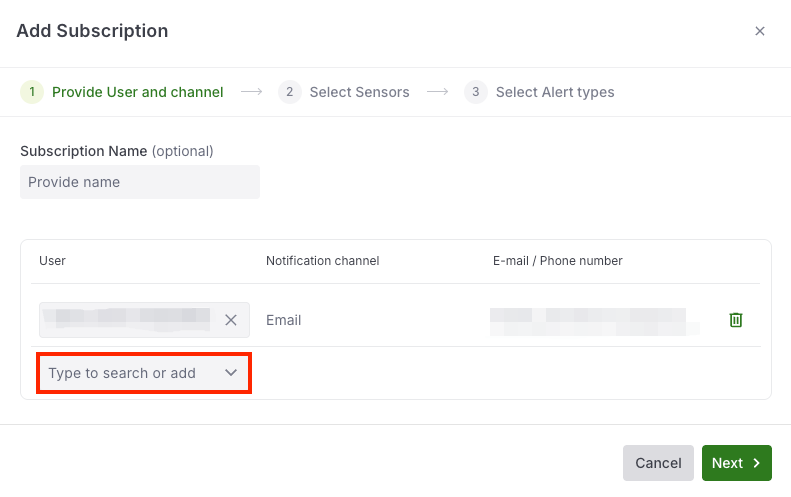
-
Select Sensor type from dropdown menu.
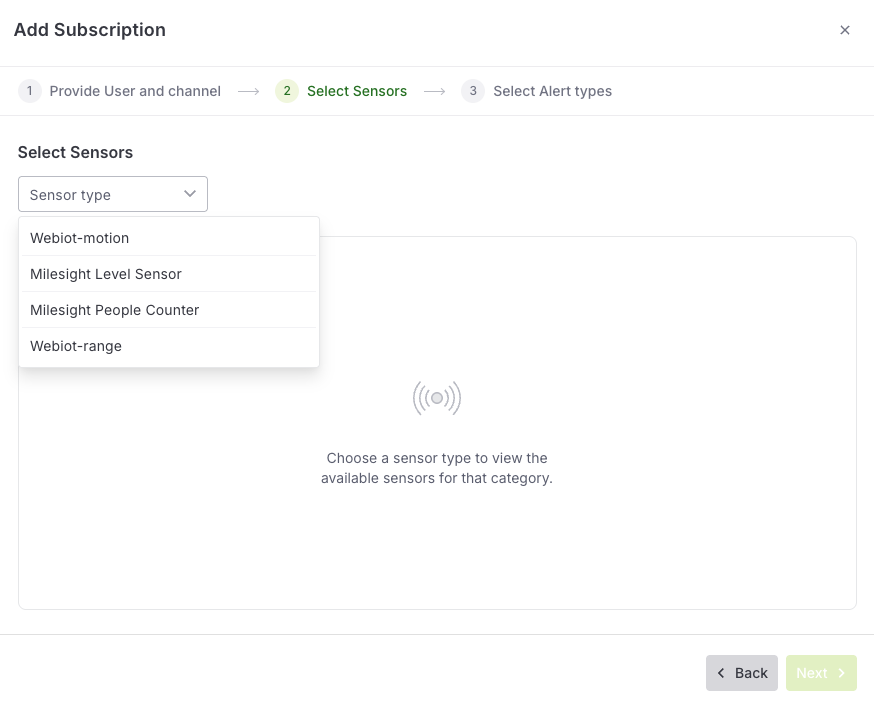
-
Select a Sensor and click "Next".
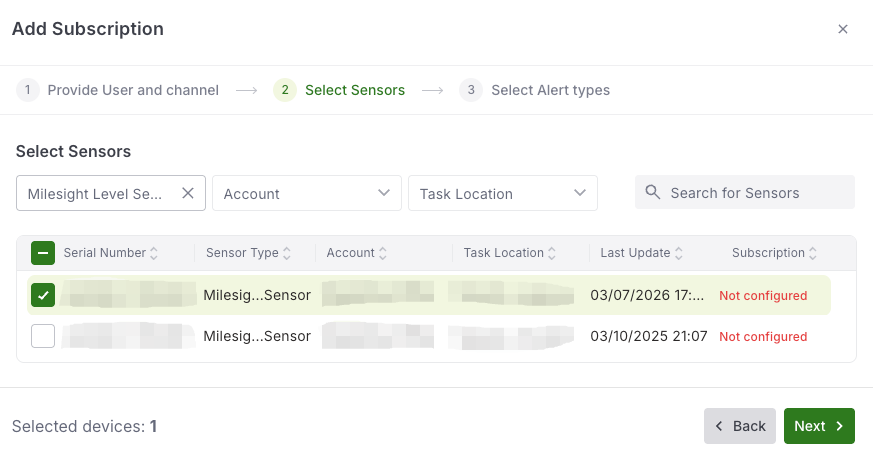
Only one subscription can be configured for a sensor device.
- Select Alert types and click on "Add Subscription".
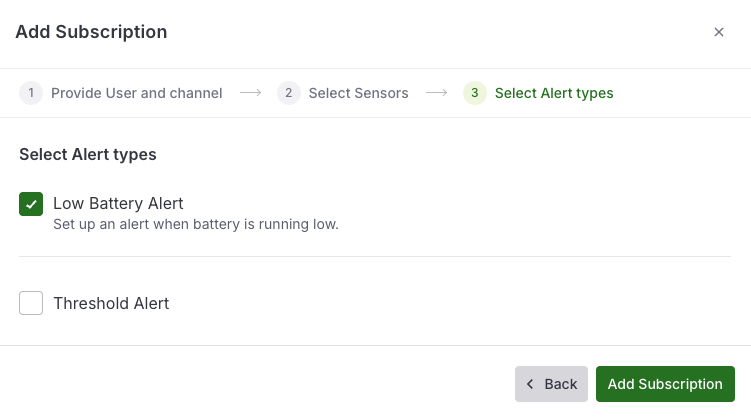
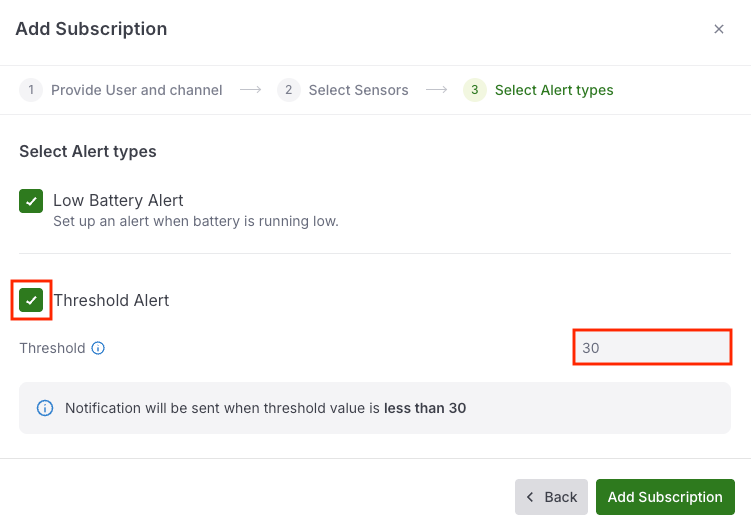
Threshold Alert
Checking "Threshold Alert" allows you to configure any desired Value to send a notification.
In this case, a notification will be sent when the Value is less than 30cm.
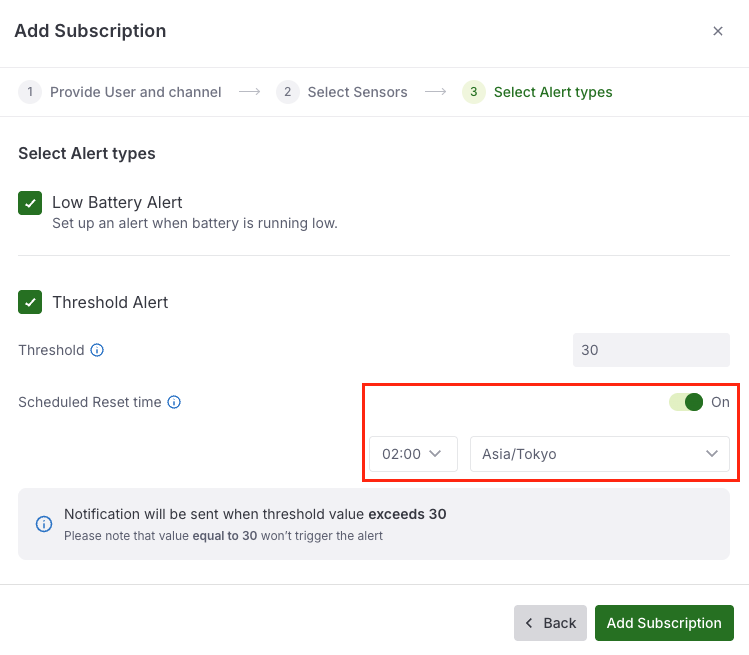
For Milesight People Counter and Webiot-motion, you have the option to specify a desired reset time in order to start counting the value from zero.
Sensor Information
| Sensor Type | Measurement Type | When alerts are sent |
|---|---|---|
| Milesight Level Sensor | Level/Distance (cm) | Less than a specified Value |
| Milesight People Counter | Number of people | Bigger than a specified Value |
| Webiot-motion | Number of people | Bigger than a specified Value |
| Webiot-range | Level/Distance (cm) | Less than a specified Value |
*eLiteID (Nexus) is NOT supported for Sensor Subscription.
Edit Sensor Subscription
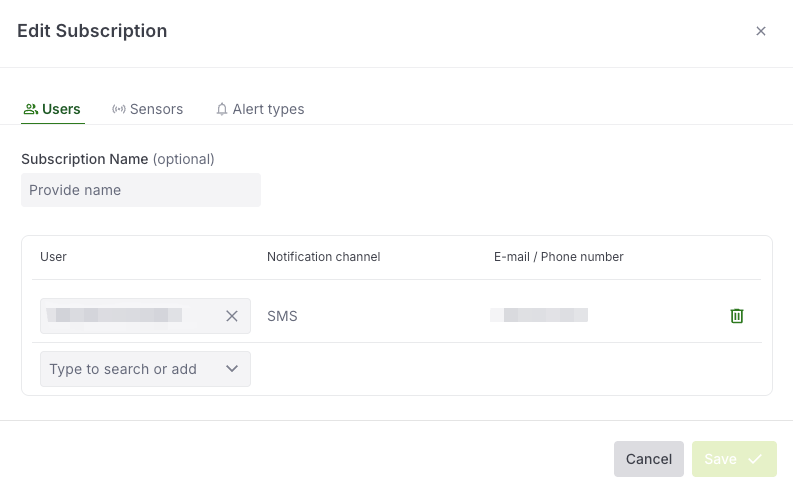
To edit Sensor Subscription, click on "Edit Subscription" from dropdown menu.
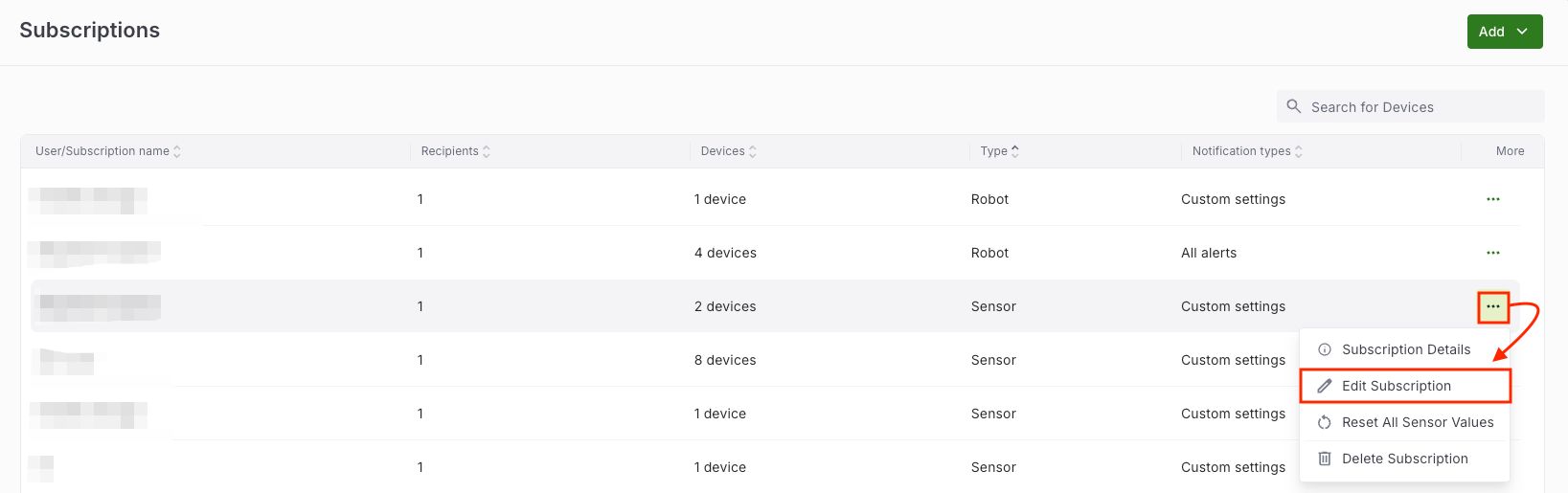
You can edit User information including Subscription Name, re-select Sensors and Alert types.
Delete Sensor Subscription
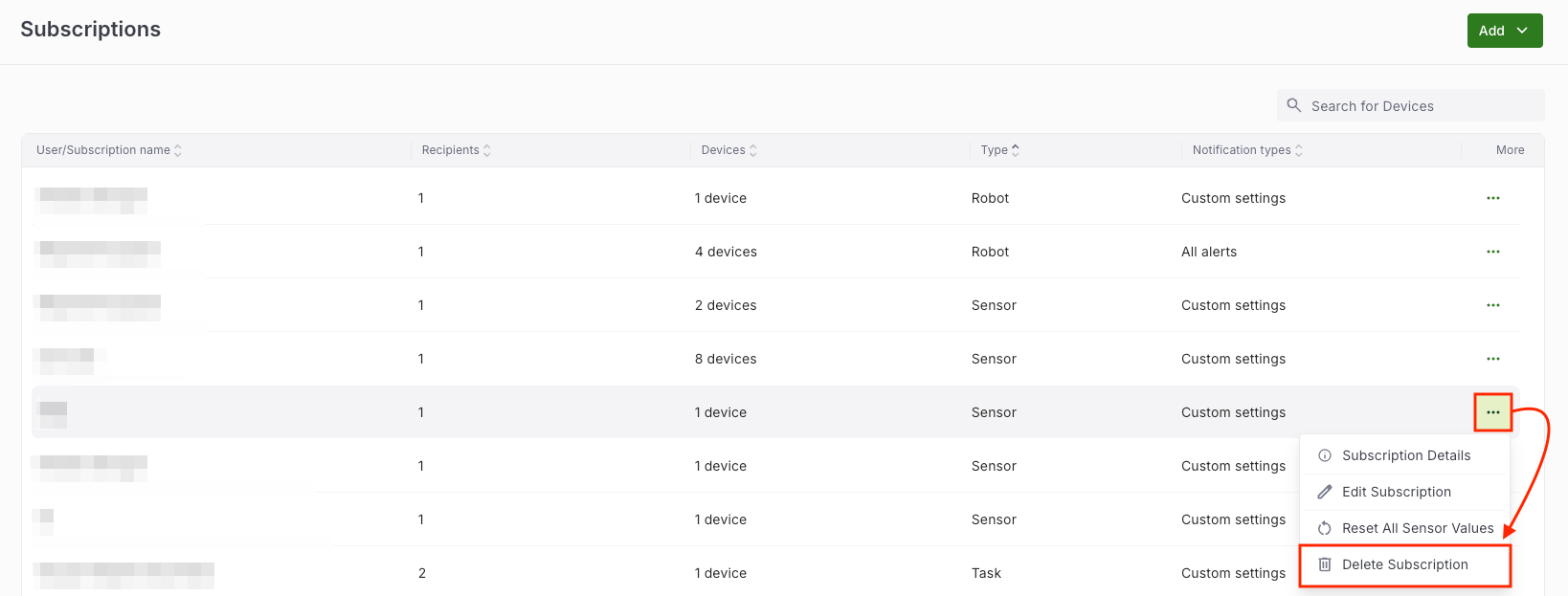
To delete Sensor Subscription, confirm "Type" whether it's what you need to delete, and click on "Delete subscription" from dropdown menu.
Click "Delete".
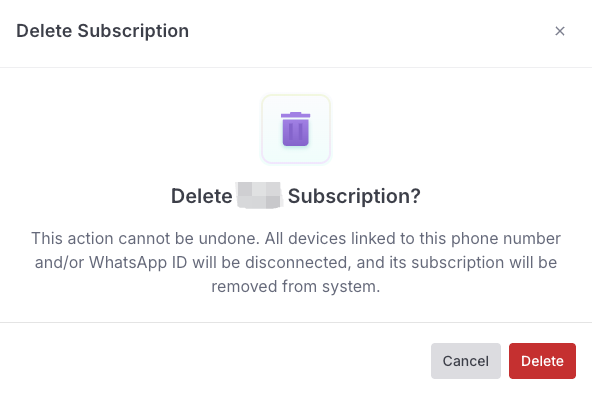
Now your Sensor Subscription has been deleted.

Sensor-Triggered Task Generation
You can create a sensor-triggered task subscription the same as Robot / Sensor Subscriptions.
- To create Task, go to Subscriptions in the MANAGE section.
- Click Add button and select Task Generation - sensor.
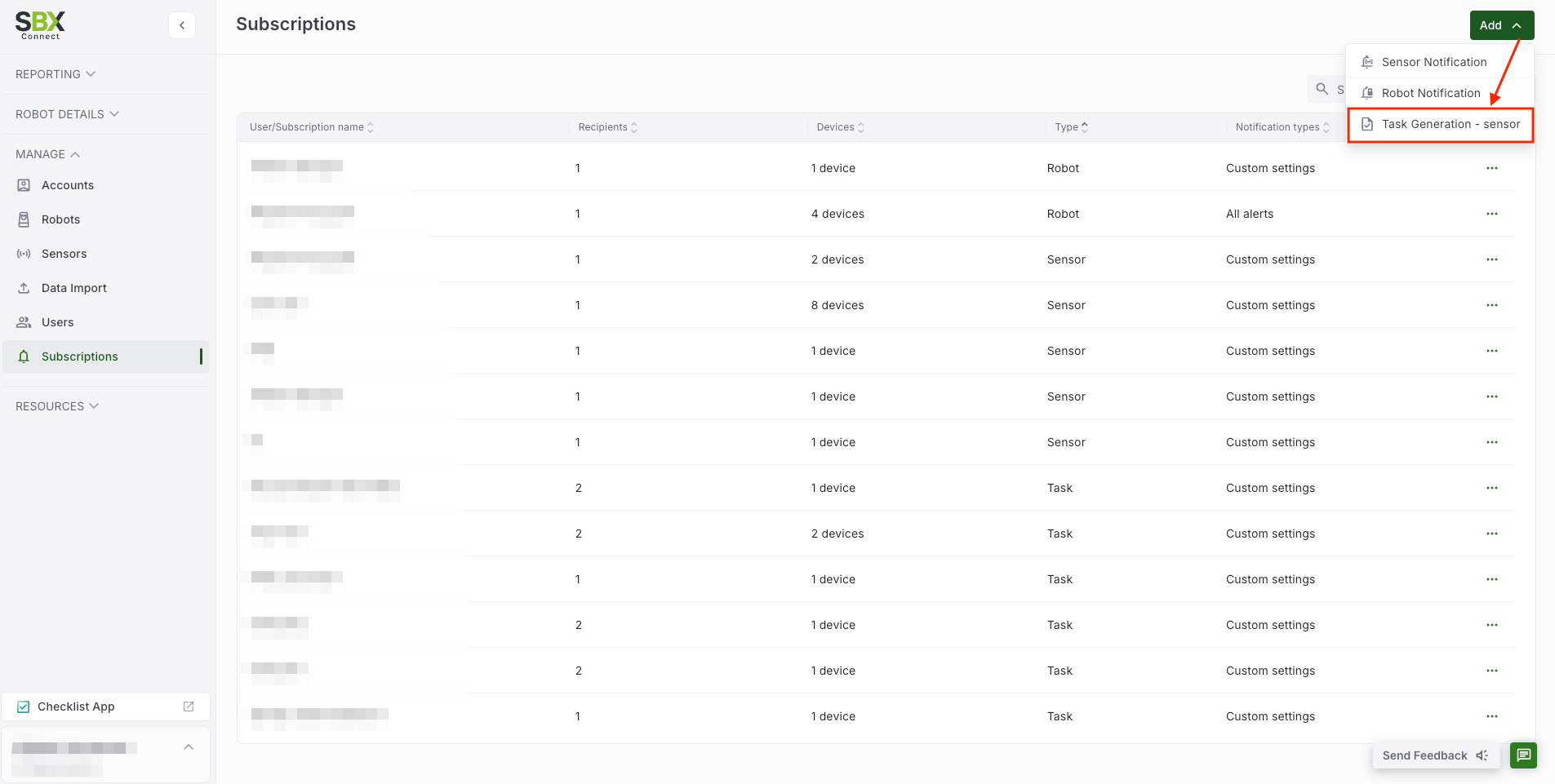
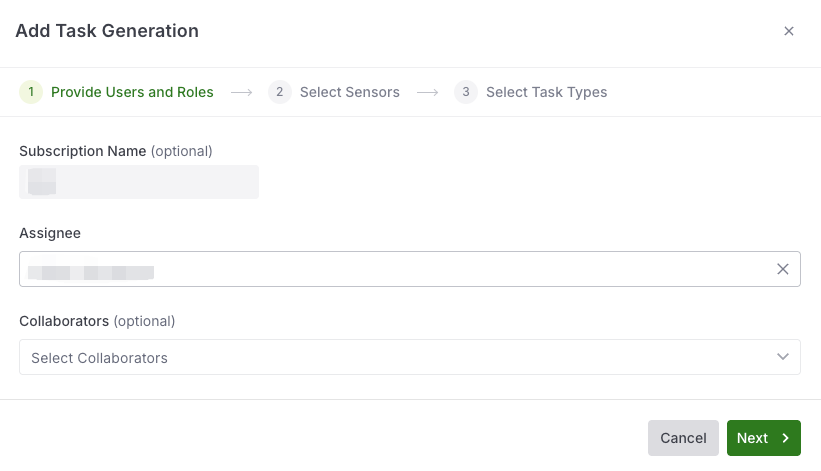
- Enter Subscription Name (optional), choose Assignee, Collaborators (optional), then click "Next".
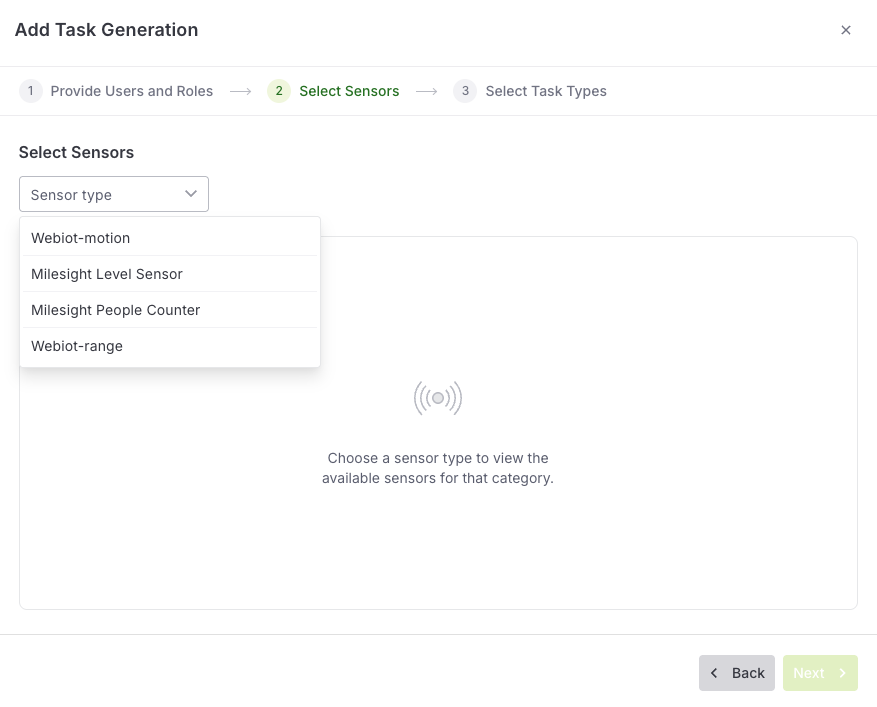
- Select Sensor type and click "Next".
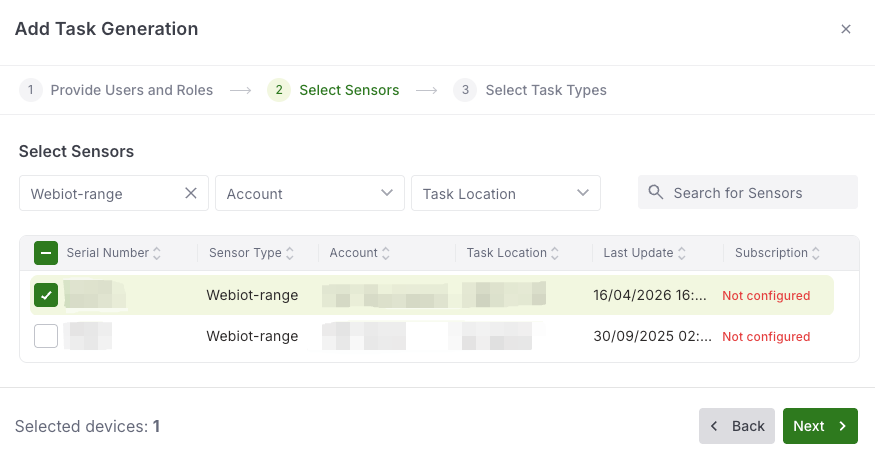
- Select any sensor (Not configured) and click "Next".
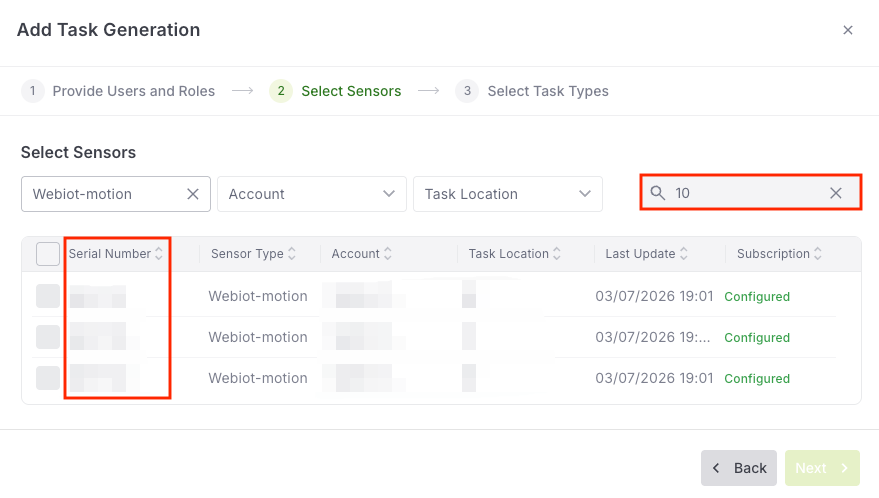
It's also available to filter Sensors by entering a specific Serial Number in the Search box.
- Click on "Create Task Generation".
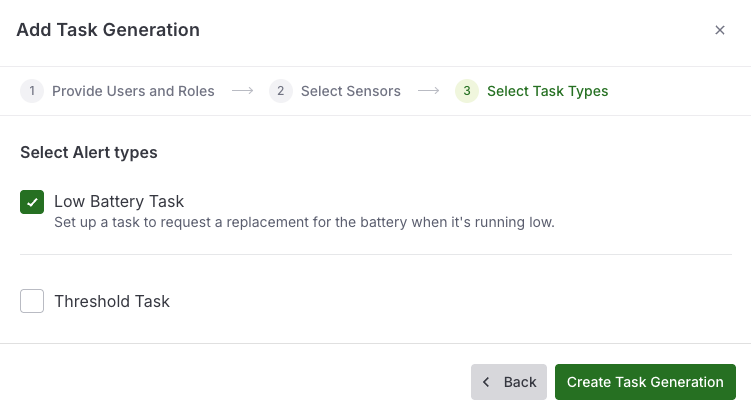
Threshold Alert
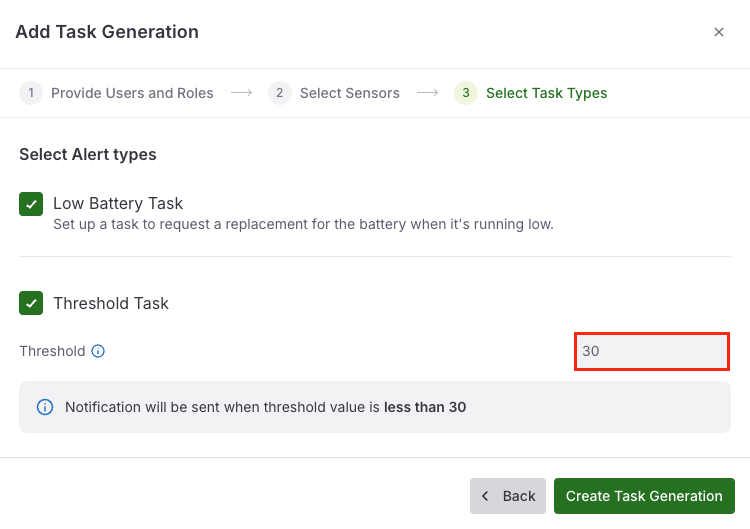
Checking "Threshold Alert" allows you to configure any desired Value to create a new task in the Checklist App and send a notification to associated users.
In this case, a task will be created when the value is less than 30 cm. A notification will be sent to associated users at the same time.