Send feedback
On the Checklist App, it's available to send feedback.
To send feedback, click on "Send feedback" at the bottom right.
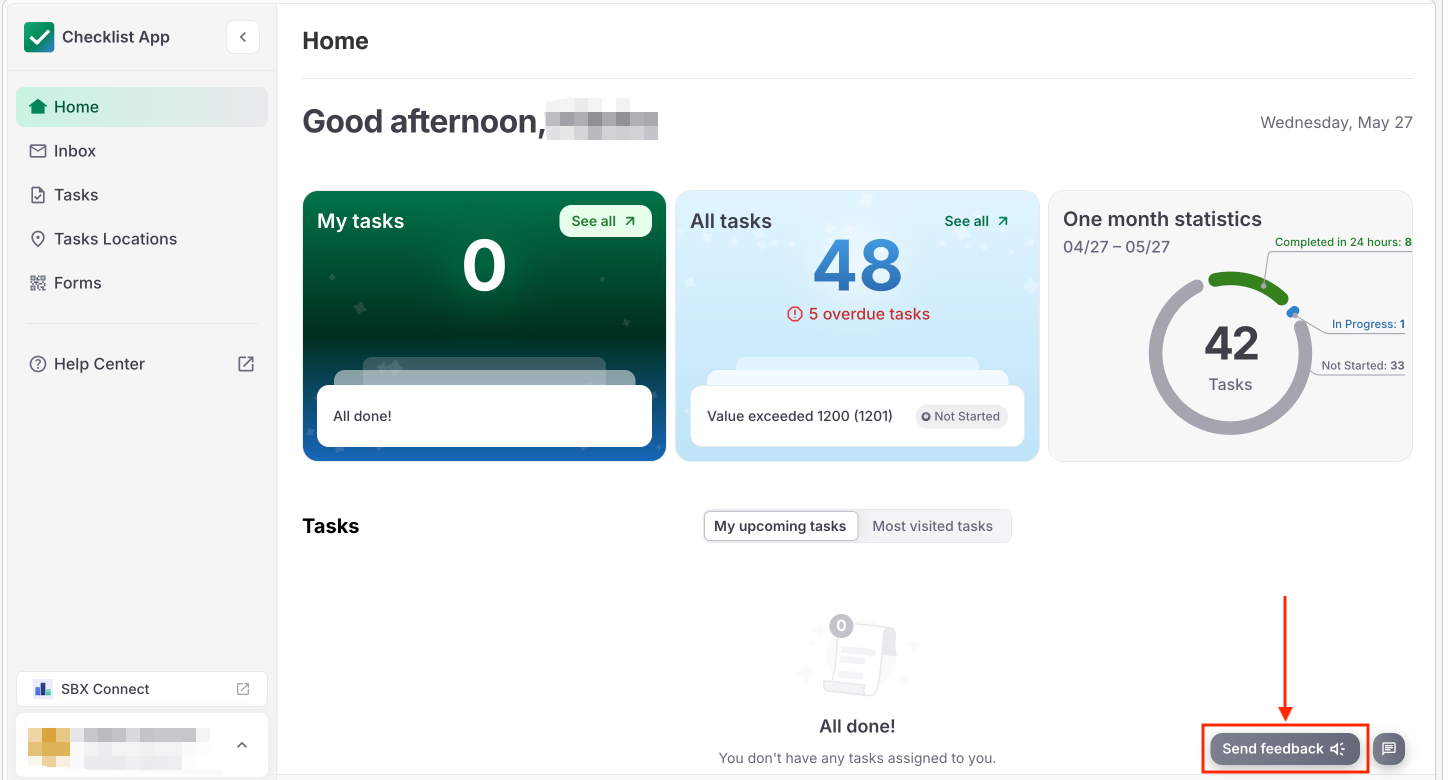
This window appears, and you can input your problem, idea, or suggestion in this field.
You can add any screenshot too.

To Add a Screenshot
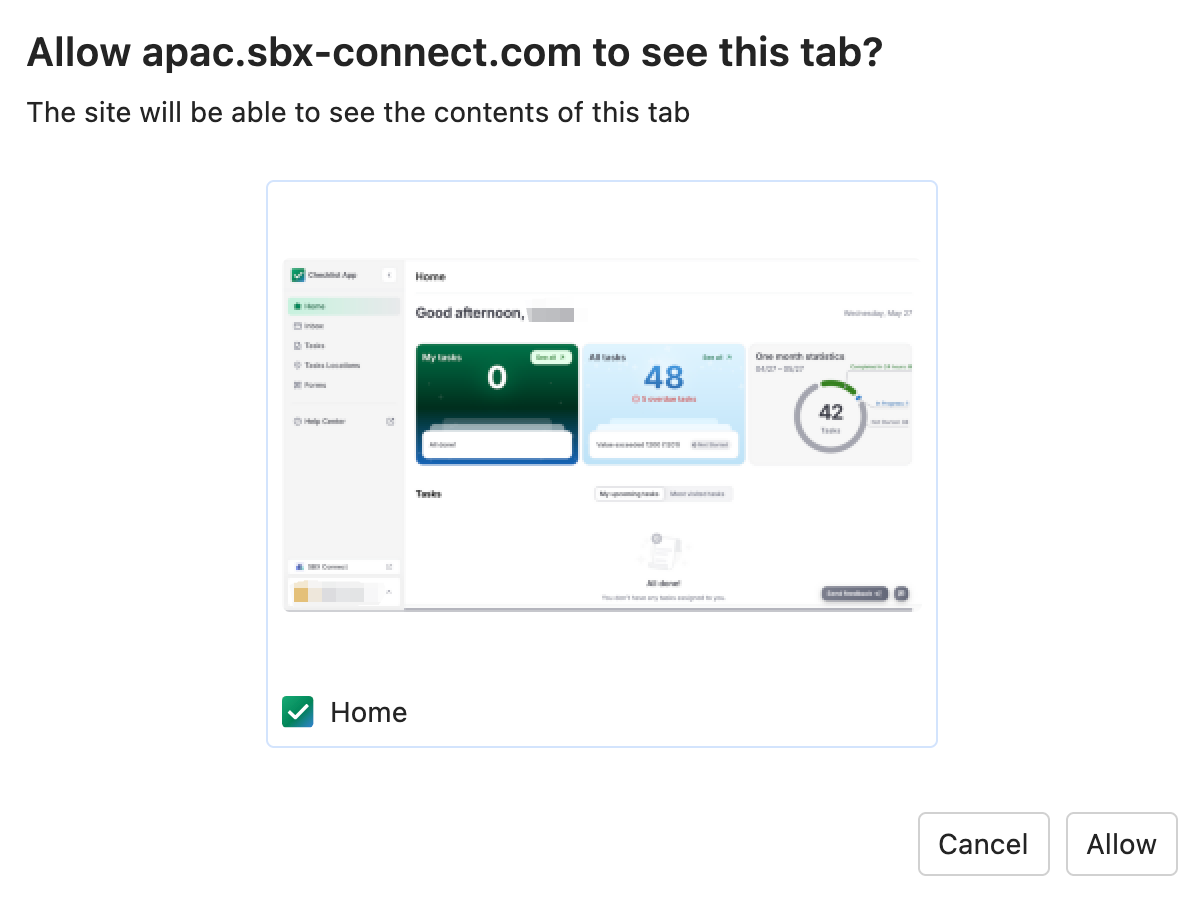
If you click "Add a screenshot", this window will pop up to allow the system to see the current tab (in this picture, a user is on the "Home" tab. So please move to any tab you need to capture a screenshot before clicking "Add screenshot").
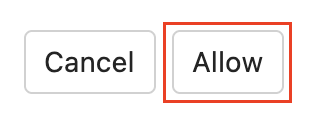
Click "Allow".
This window appears.
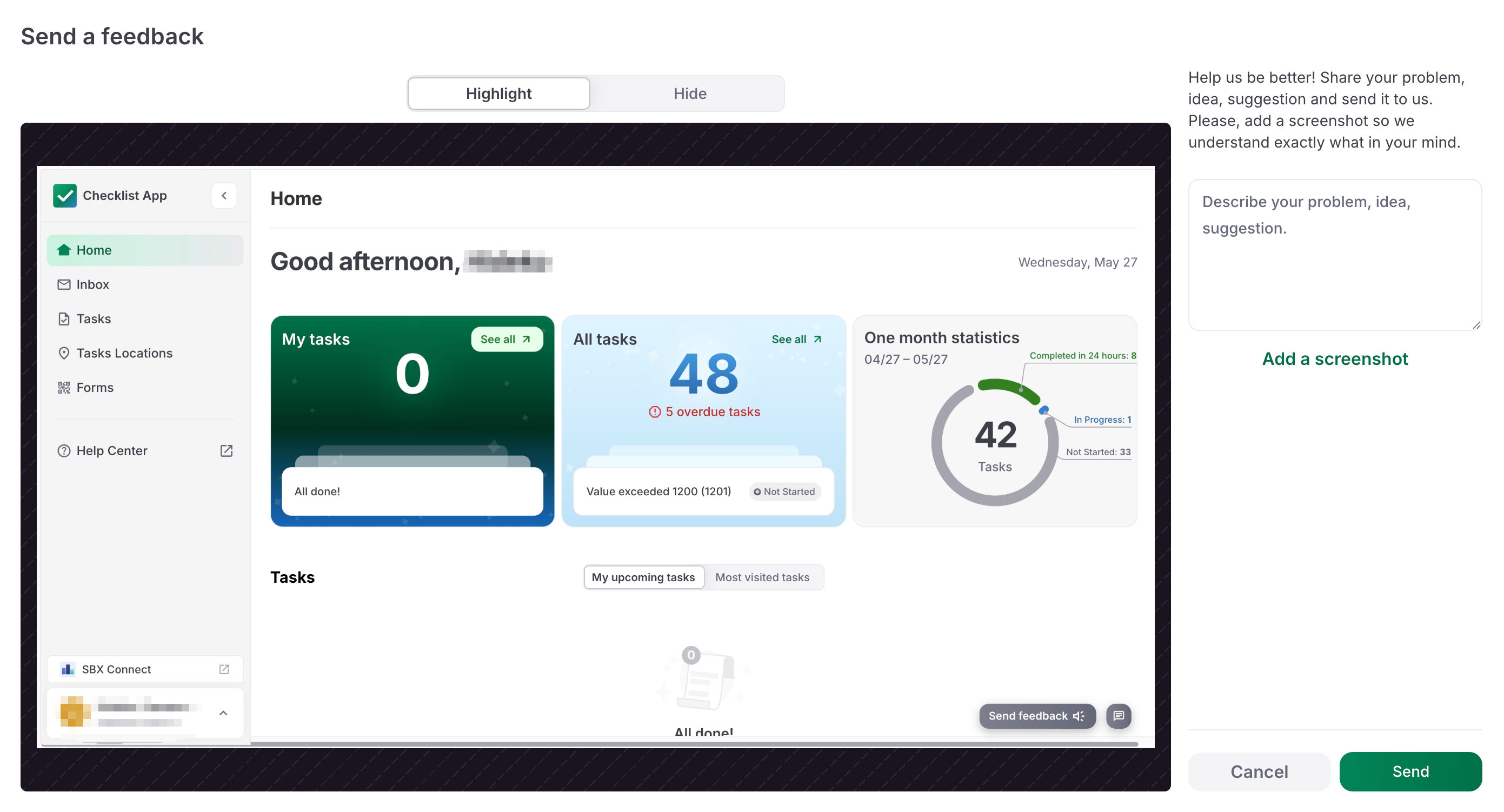
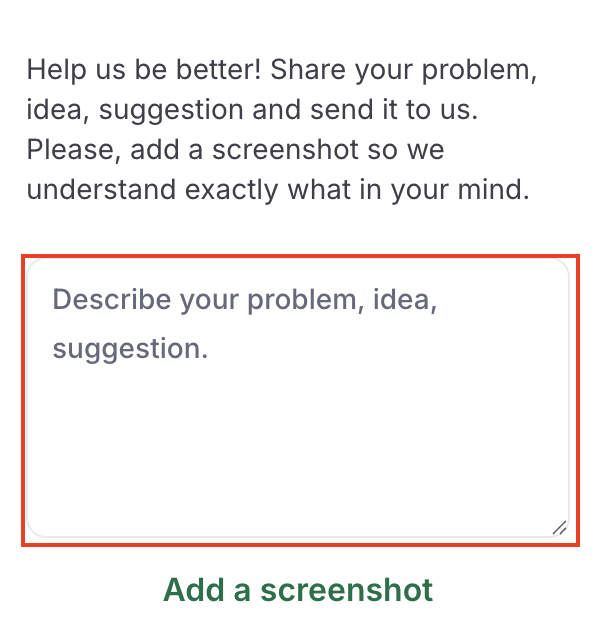
Input a comment in the right field.
Click on "Send".
Highlight Function
If you need to highlight a specific section in a screenshot, drag your cursor to select the section.
You can select more than one section at once.
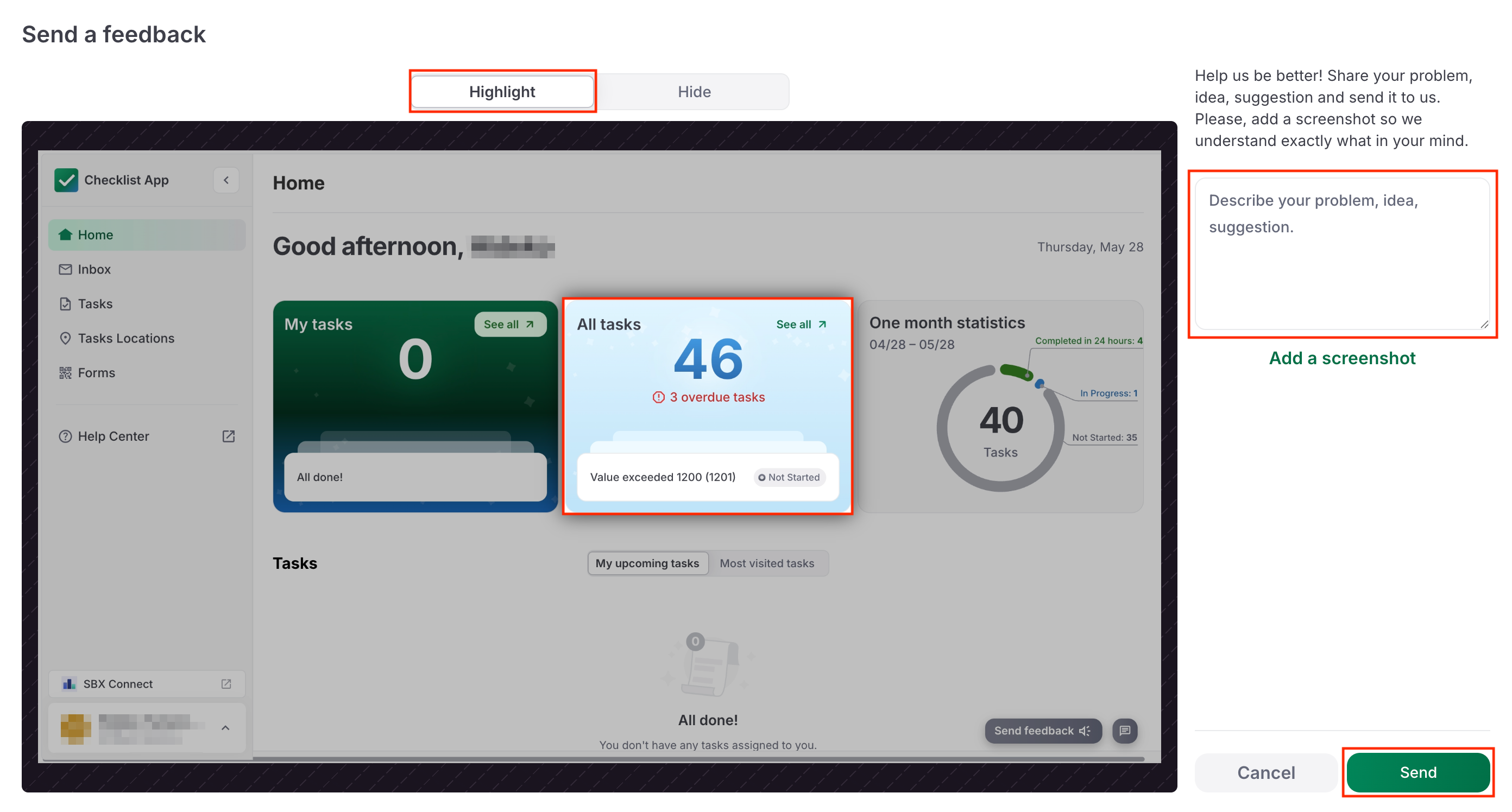
Input a comment in the right field.
Click on "Send".
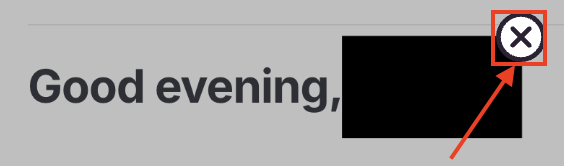
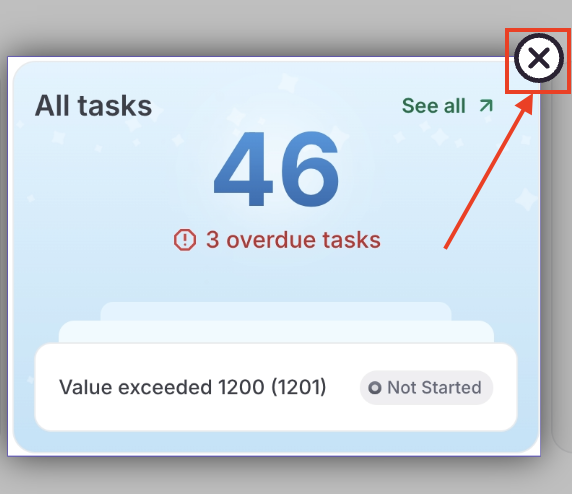
To delete a selected section, hover your cursor over the section and click on the "X" icon at the top right.
Hide Function
To hide a specific section in a screenshot, drag your cursor to select the section.
You can select more than one section at once.
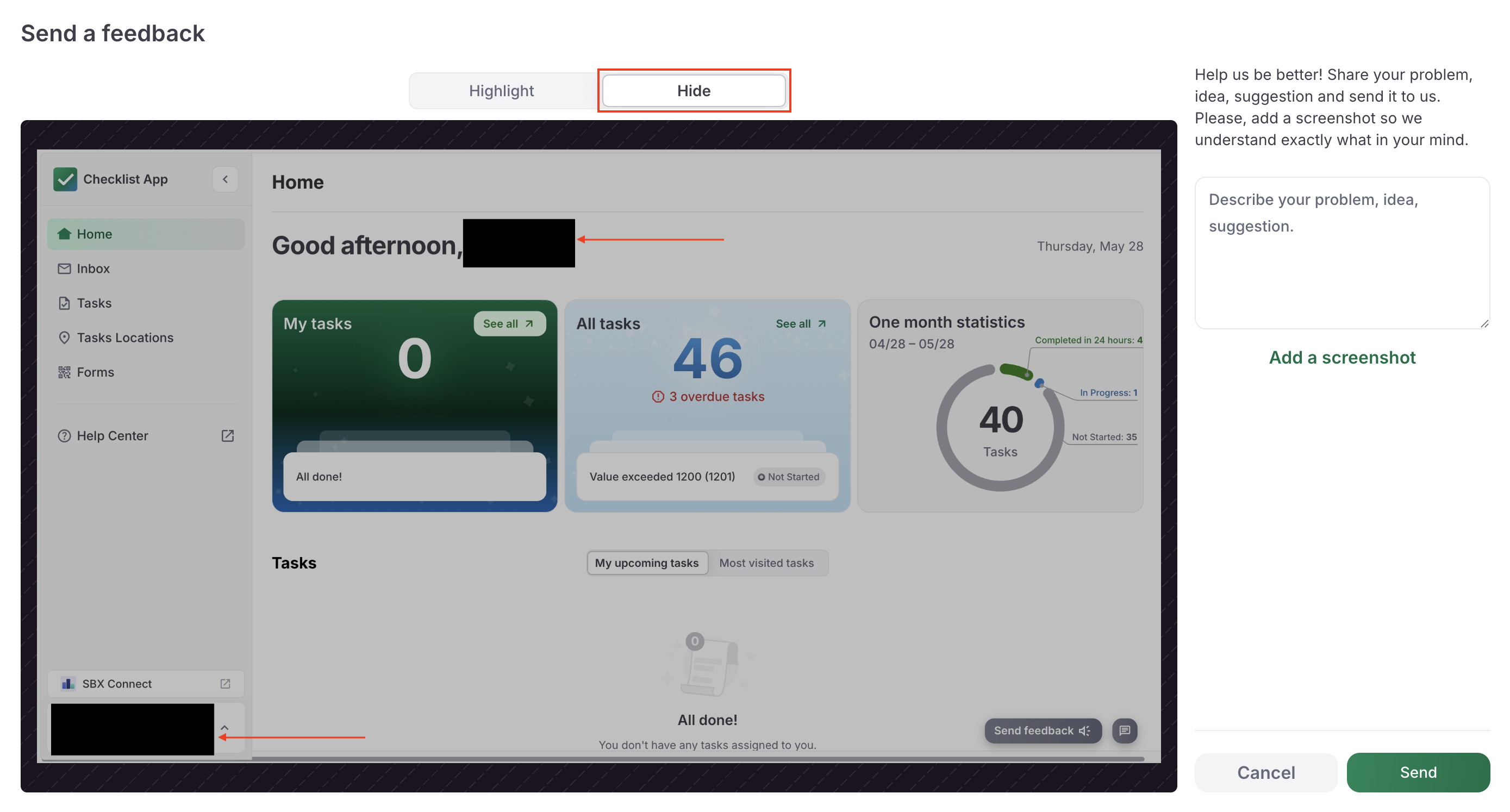
Input a comment in the right field.
Click on "Send".
To delete a selected section, hover your cursor over the section and cilck on "X" icon at the top right.